Before you start
- An email address you can access
- Your role — host, concierge or event coordinator
- Your upcoming availability in Vietnam time
- A phone number guests can reach on departure day
Create your profile online
Every host can join. Open the Sportkation provider workspace and choose Create my profile. Enter your name, email, role (Host, Concierge or Event coordinator), location and languages, then verify your email — no invitation or password is needed. The system recognises your role and takes you straight to the host workspace once you're in.
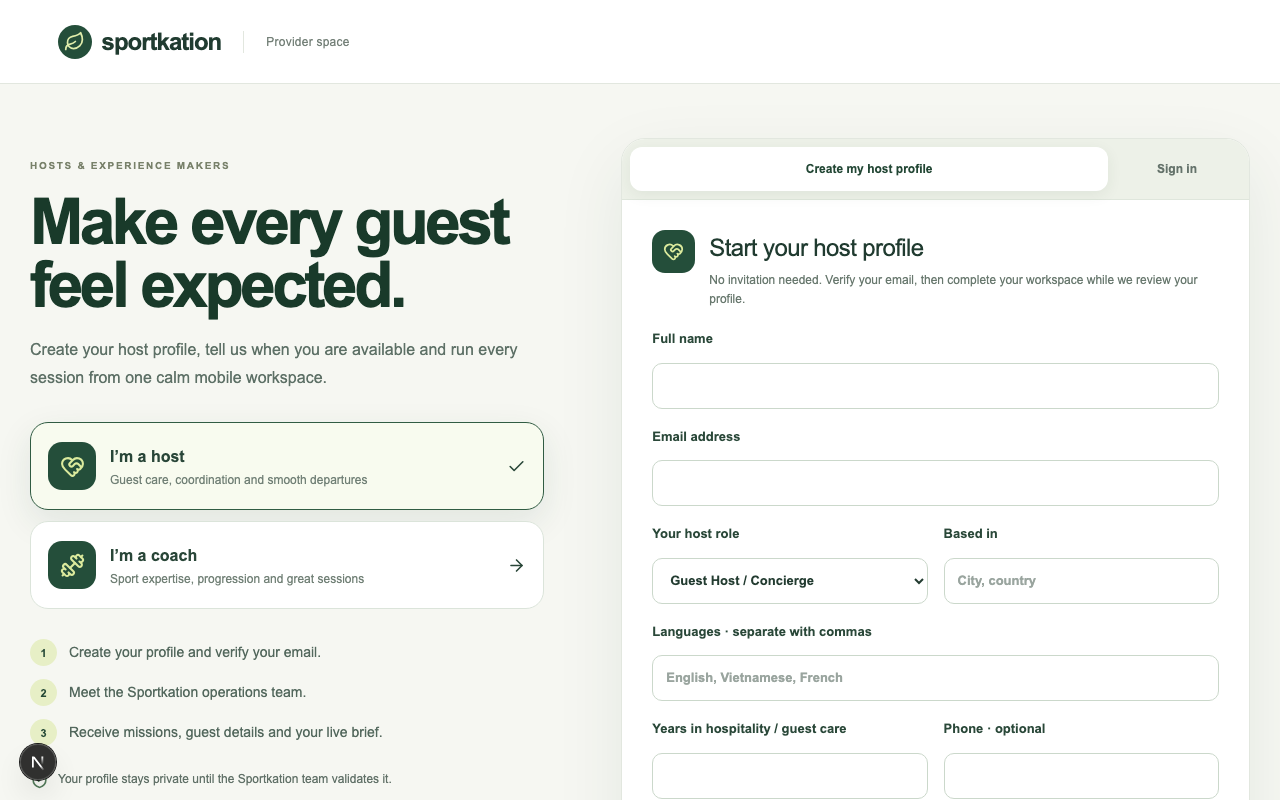
Your application is now Waiting Approval while the operations team reviews it. To return later, choose Sign in and request a new email link. Each link works once and expires in 30 minutes.
Today — your host desk at a glance
The Today tab opens on your next departure: how many days away it is, a readiness score, the venue and a Prepare this session shortcut. Below it, quick stats show your guest count, open food notes and programme days, and a Before everyone leaves card lists exactly what still needs your attention.
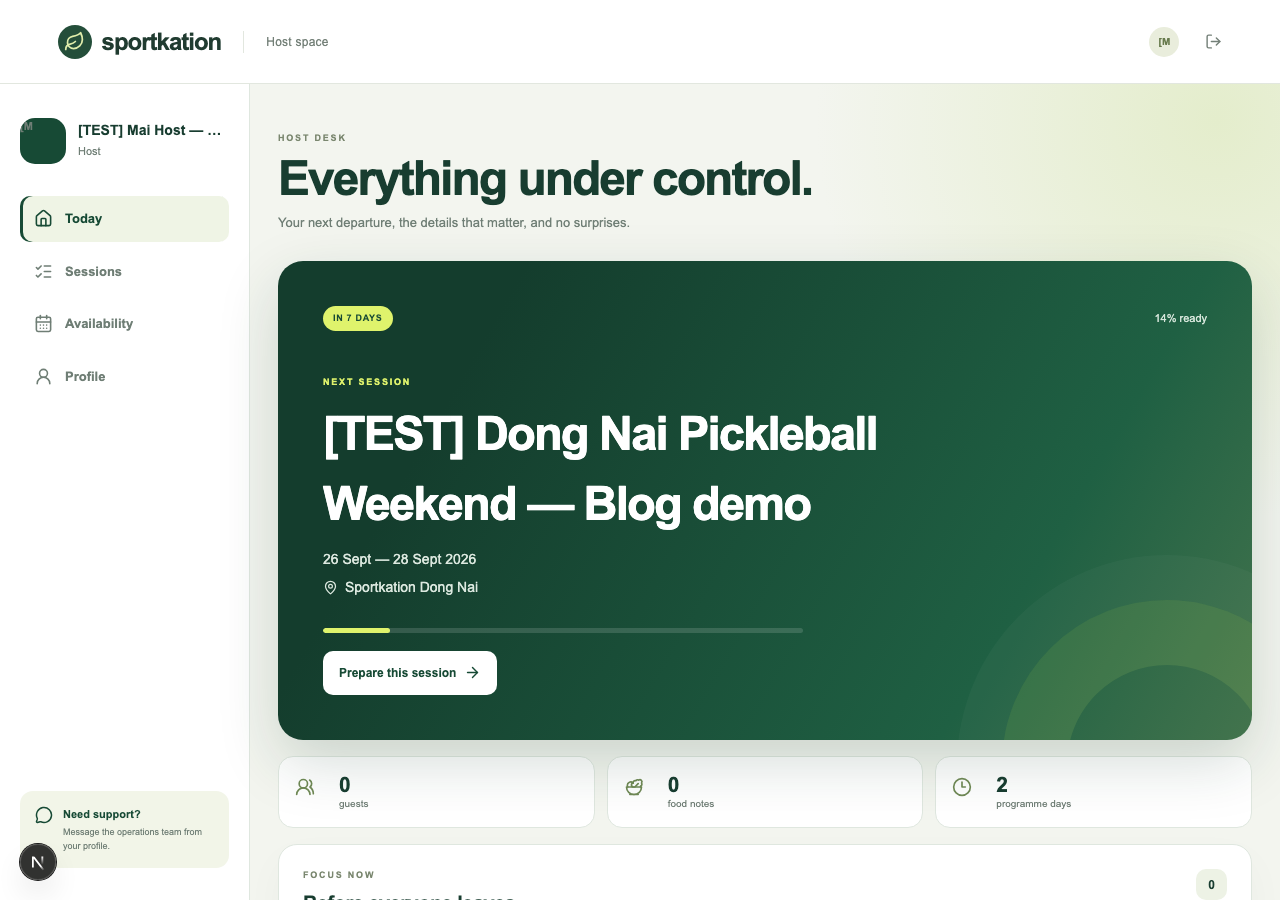
No blockers means the essential preparation — pickup point, meals, transport and programme — is already in place. If you don't have a mission yet, add your availability from here and operations will propose your next one.
Prepare each mission from the session cockpit
Open Sessions to see the full cockpit for a mission: title, dates, venue and a one-tap link to the guest group chat. The host checklist covers pickup point, guest list, meals & allergies, transport, rooms, programme and key contacts — tick each one off as you confirm it, and leave a handover note for the next host or the operations team.
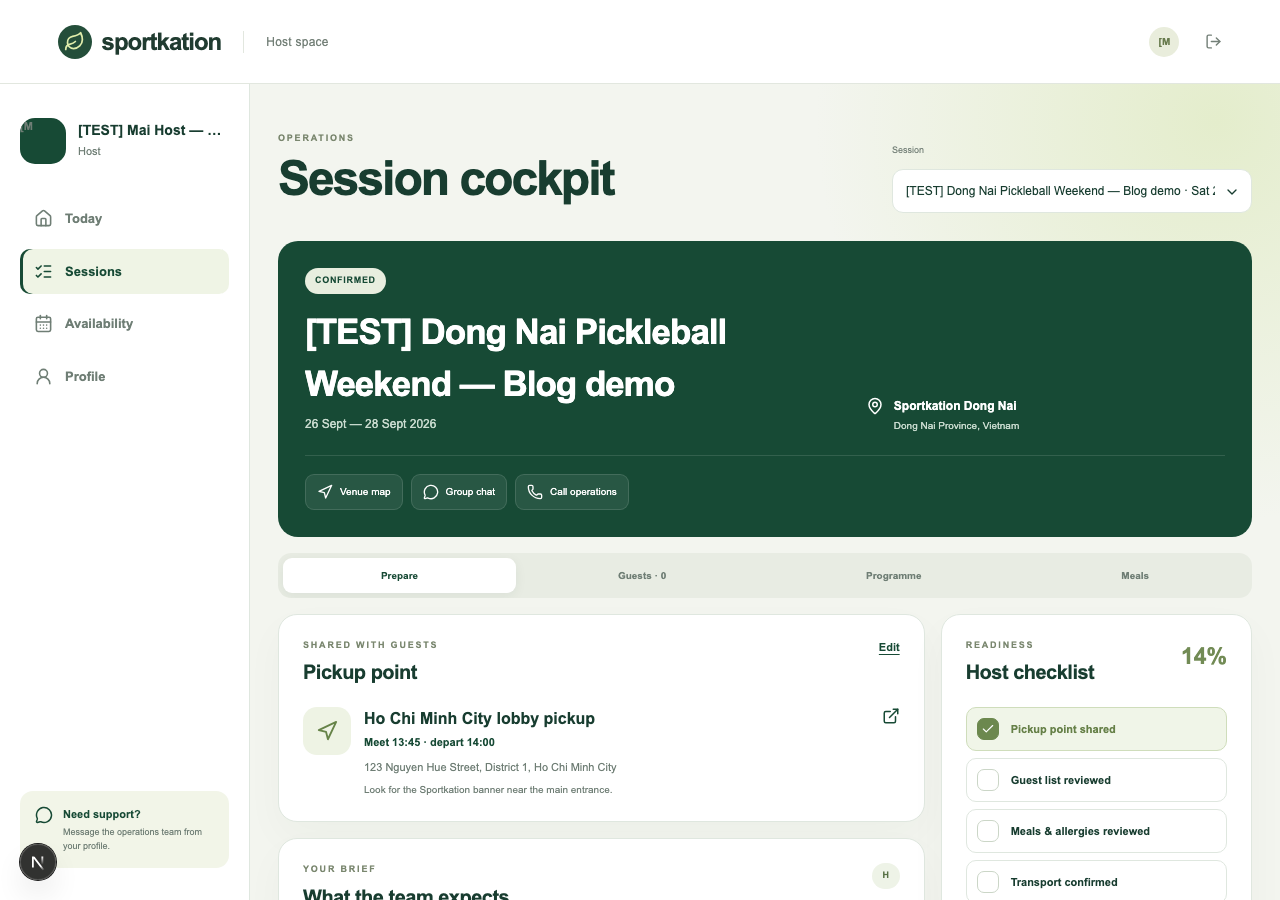
Set the pickup point here — name, address, departure time and a map link — and it appears automatically for every confirmed guest, so you only enter it once.
Share the run of show
The Programme tab lays out each day of the session so you always know what's next and can answer a guest's question without checking your phone twice.
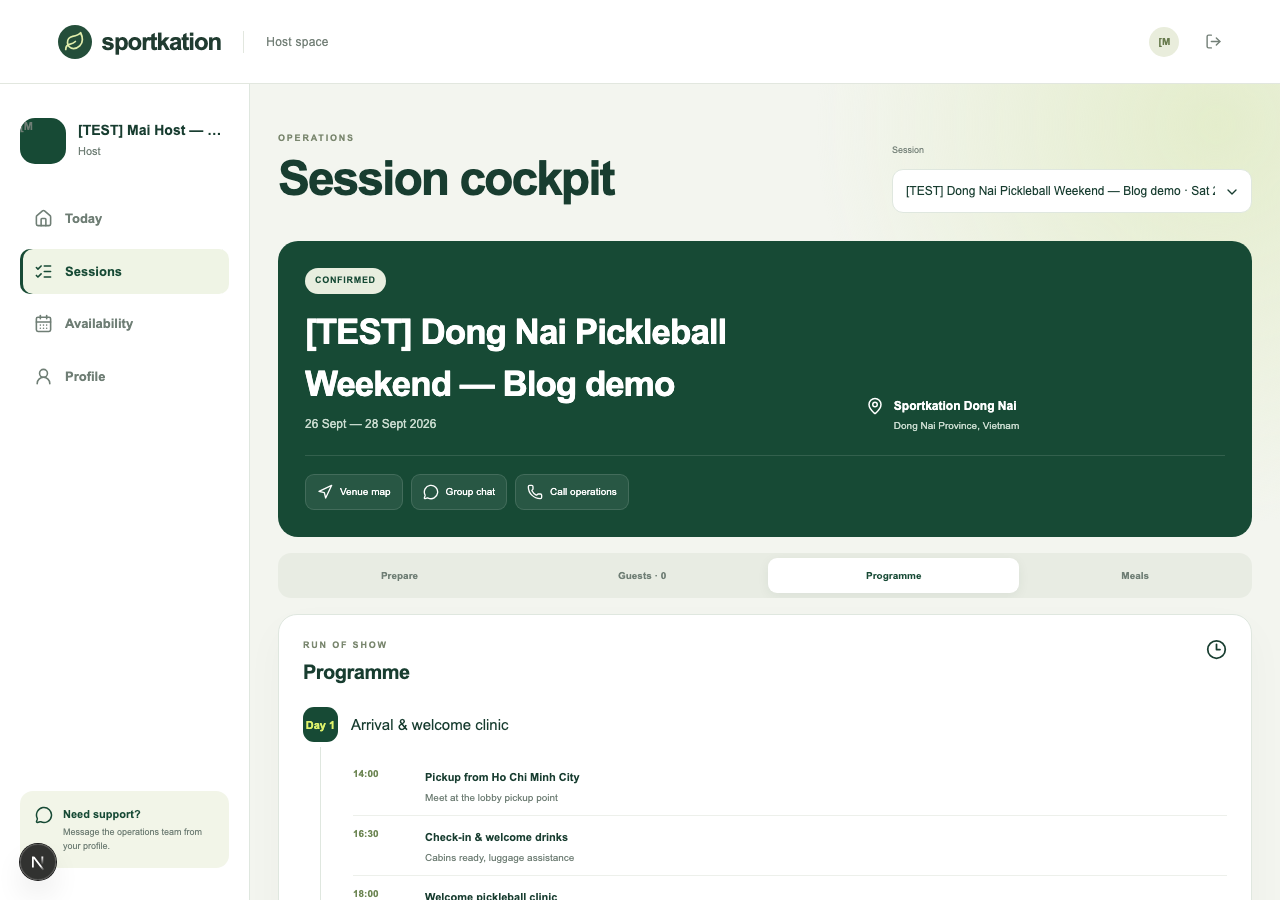
Programme days are published by the operations team. If nothing is showing yet, the detailed schedule hasn't been published — check back closer to departure.
Know who eats what
Meals breaks guests down by meal set — standard, vegetarian or another dietary set the kitchen prepared — with the exact breakfast, lunch and dinner dishes and how many guests are on each. It's the fastest way to brief the kitchen before a meal service.
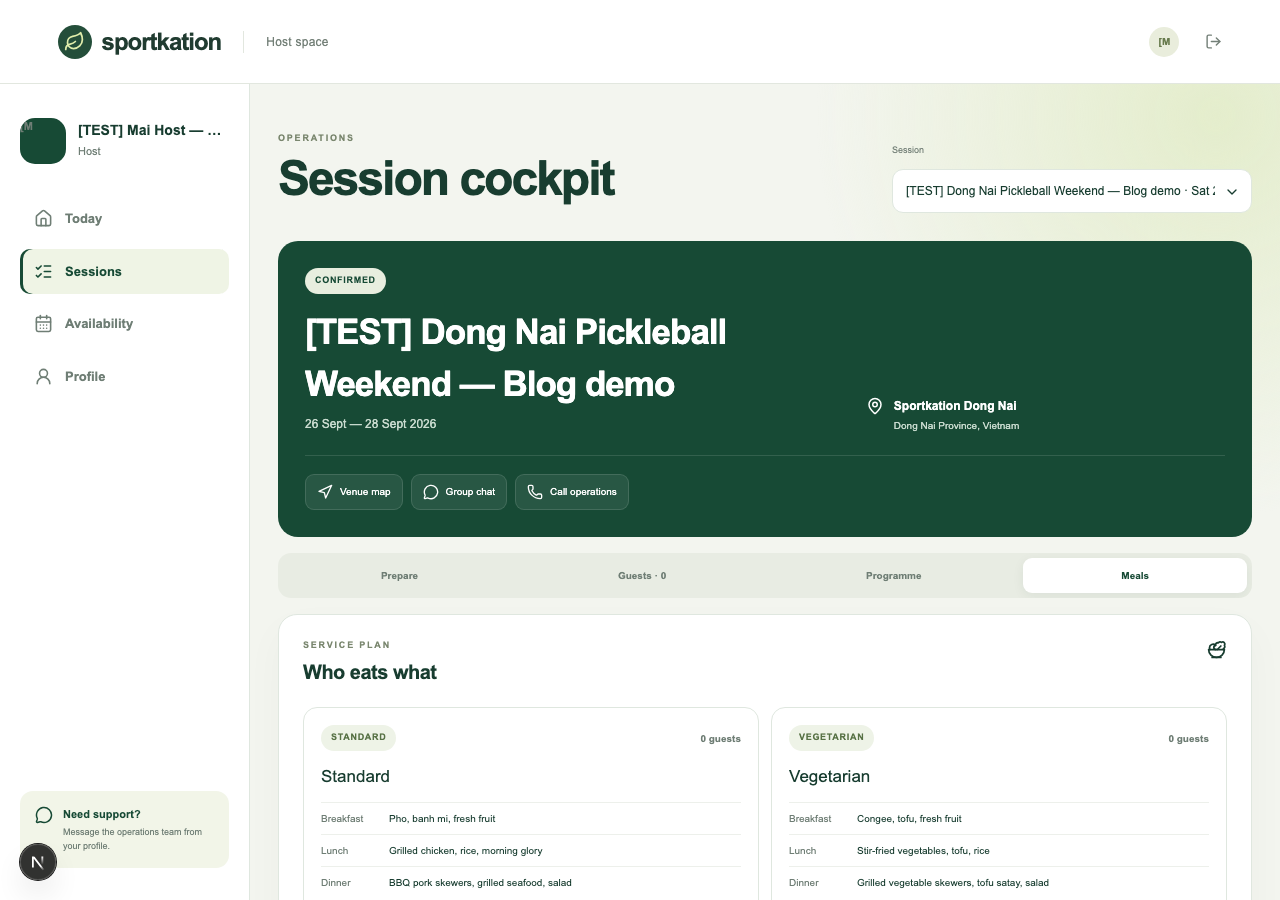
A meal set only appears once a guest has chosen it, so headcounts stay accurate right up to departure.
Check guests in and flag allergies
The guest list highlights anyone who needs attention — an allergy, a dietary note, an unassigned room or unconfirmed transport — so nothing slips through. Call a group organiser directly, and once check-in opens (a day before departure), mark each guest present or absent as they arrive.
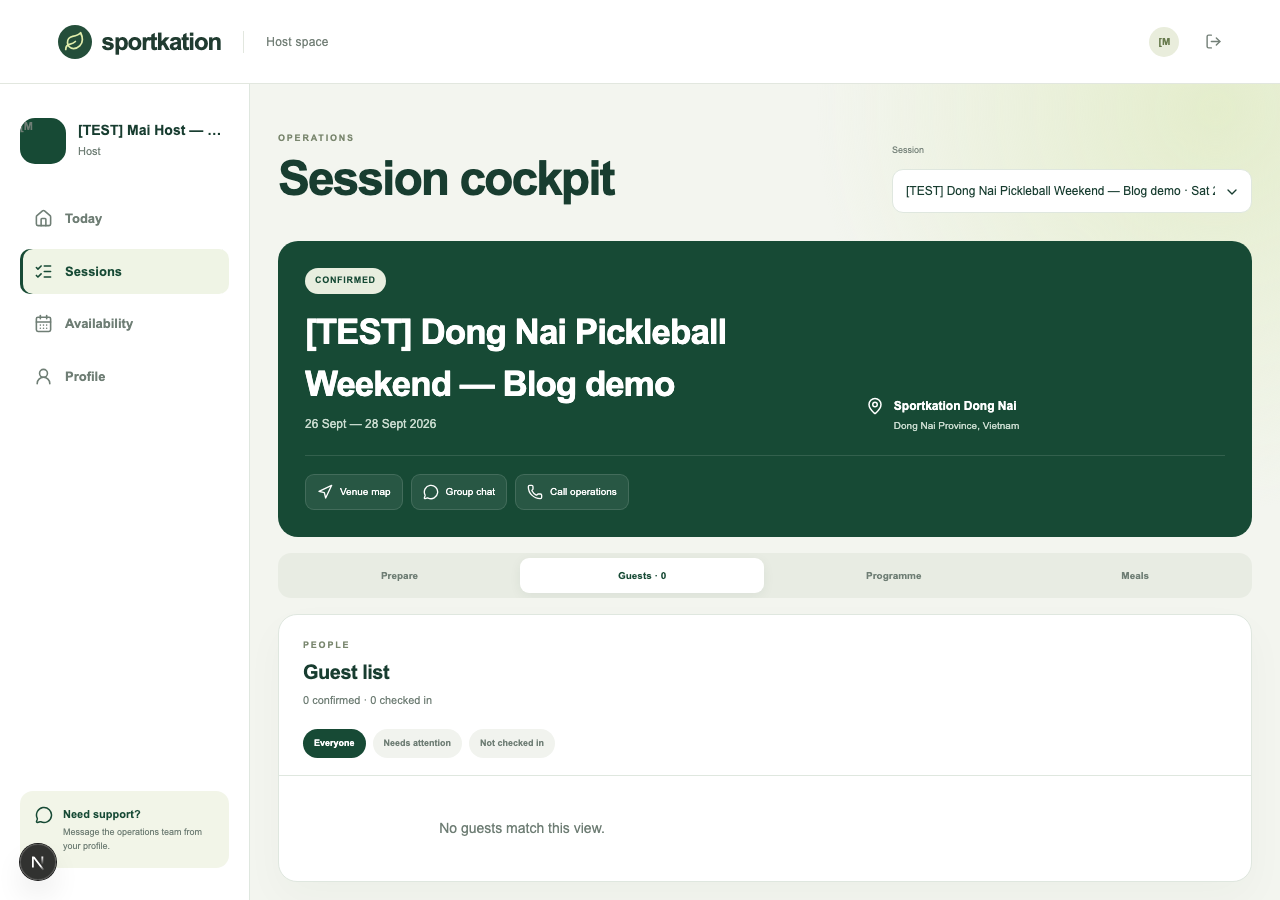
Guests flagged for attention stay flagged until their allergy, meal or transport detail is confirmed. Clearing the list before departure is the fastest way to a calm arrival.
Share the dates and times you're free
Open Availability, select one or more future dates, set a start and end time and add a note if useful. Your saved windows appear below the calendar. All dates and times use Vietnam time, GMT+7.
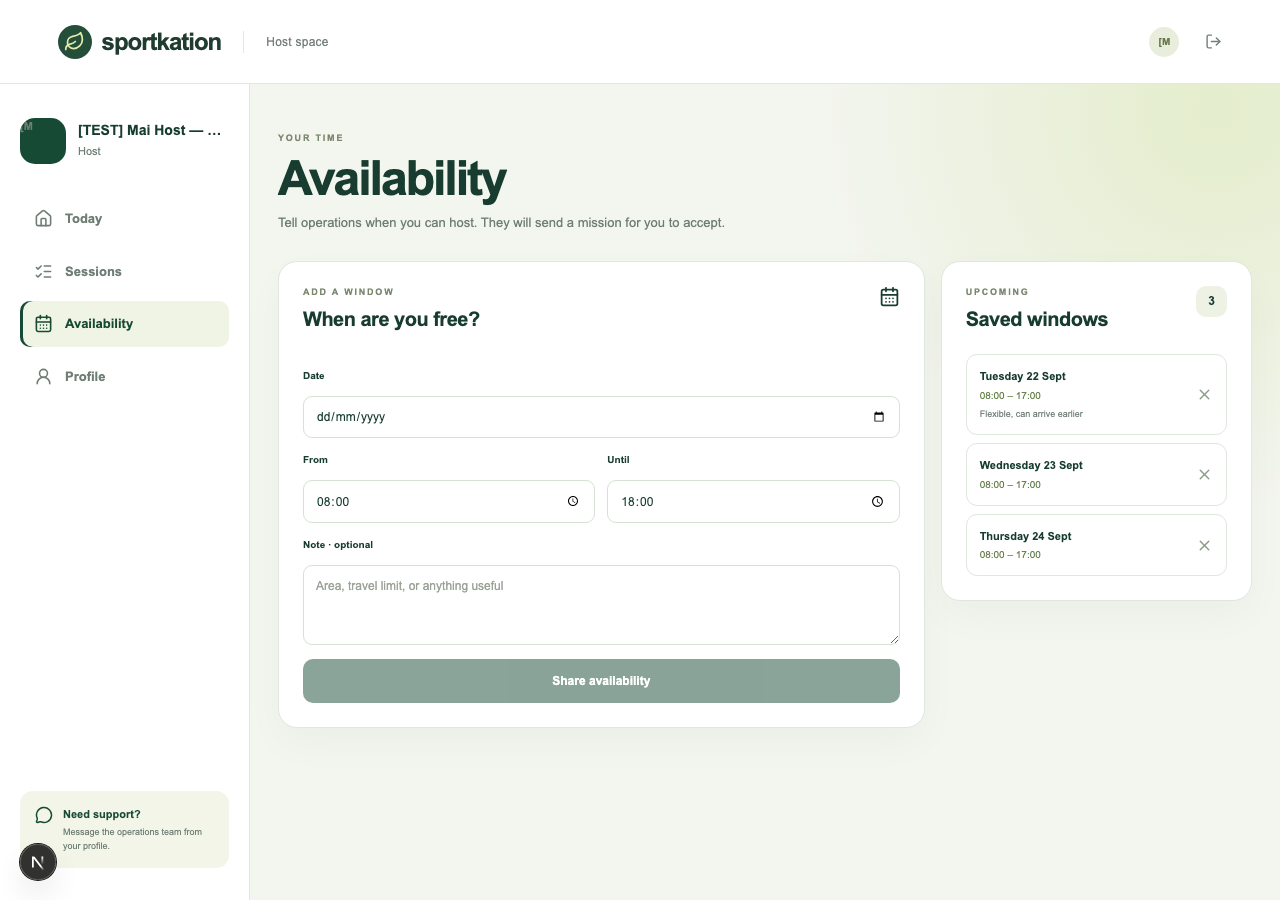
Availability isn't a booking — you still review and accept every mission proposal. To change an unreserved window, remove it and add the new time; if a window already has a mission attached, message the team to arrange a change.
Keep your details current
Open Profile to check the contact details, languages and equipment the operations team plans around. Update anything that's changed and save — or message the team directly from the same screen if you need a hand.
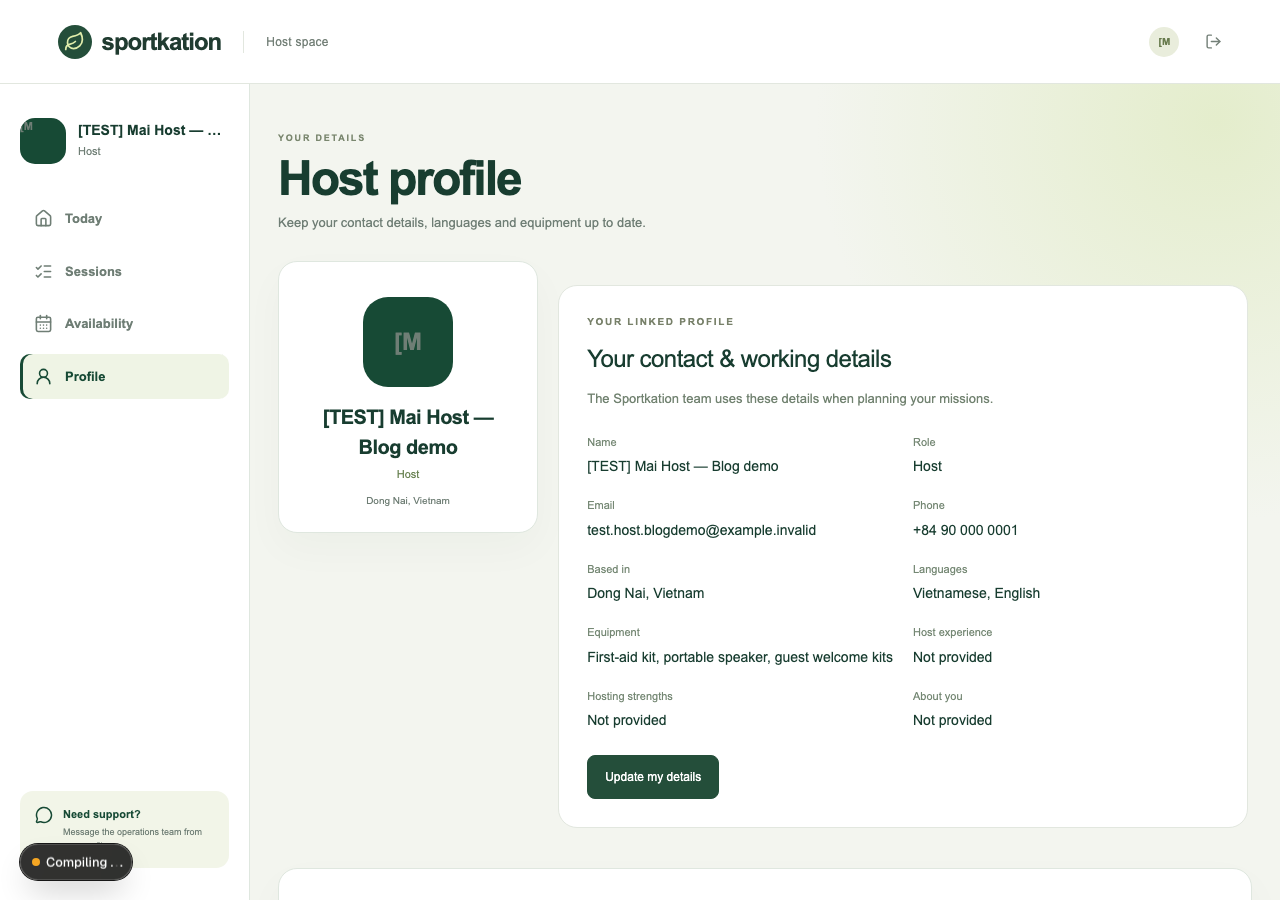
Your verified sign-in email stays protected; message the team if you ever need to change it.
Need a hand?
My link does not work.
Open the provider workspace, choose Sign in and request another email. Use the newest link within 30 minutes; each link works once. Check your spam folder. Sign out when using a shared device.
I cannot save my changes.
Read the message beside the form and complete the required fields. If the session changed elsewhere, refresh and review the latest details before trying again.
I need to change an accepted mission.
Message the operations team from your Profile tab. Removing availability does not cancel a mission. If the team changes the brief, review the update before agreeing again.
Share this guide with new hosts. Keep your email sign-in links private. Screenshots use a demonstration account.